


In today’s digital age, screens are an integral part of daily life, and for many kids, having a personal television in their bedroom is a dream come true. Whether for educational shows, gaming, or winding down with a favorite cartoon, a TV in a kid’s room can seem like a harmless addition. But is it truly a good idea? Many parents wrestle with the decision, torn between the convenience of keeping kids entertained and the potential risks that come with unsupervised screen time.
Download and Start Your Free Trial of the Safes Parental Control App
The debate over TVs in kids’ rooms goes beyond just entertainment—it touches on sleep quality, screen addiction, exposure to inappropriate content, and even family bonding. Some argue that a TV can be a useful tool when controlled with proper parental settings, while others believe it encourages isolation and unhealthy habits. Understanding both the benefits and drawbacks is crucial before making the decision to set up a TV in your child’s personal space.
In this blog, we’ll explore everything you need to know about choosing a TV for your child’s room, including the best models, essential parental controls, and expert-backed recommendations for responsible usage. If you’re considering adding a screen to your child’s personal space, this guide will help you make an informed decision that prioritizes their well-being and development.
Should Kids Have a TV in Their Room?
Having a TV in a child’s room is a debated topic among parents and experts. While some families find it useful for educational content and relaxation, others worry about excessive screen time, lack of supervision, and its impact on sleep and social development.
Pros:
- Educational Benefits – With streaming services offering educational content, a bedroom TV can be a tool for learning. Shows like National Geographic Kids or PBS programs can provide valuable lessons in science, history, and more.
- Entertainment and Relaxation – Watching TV before bed can be a relaxing routine for some children, especially if limited to age-appropriate, calming shows.
- Convenience for Families – A separate TV allows kids to watch their preferred programs without taking over the living room television.
Cons:
- Disrupted Sleep Patterns – Studies have shown that screens before bedtime can affect melatonin production, making it harder for kids to fall asleep.
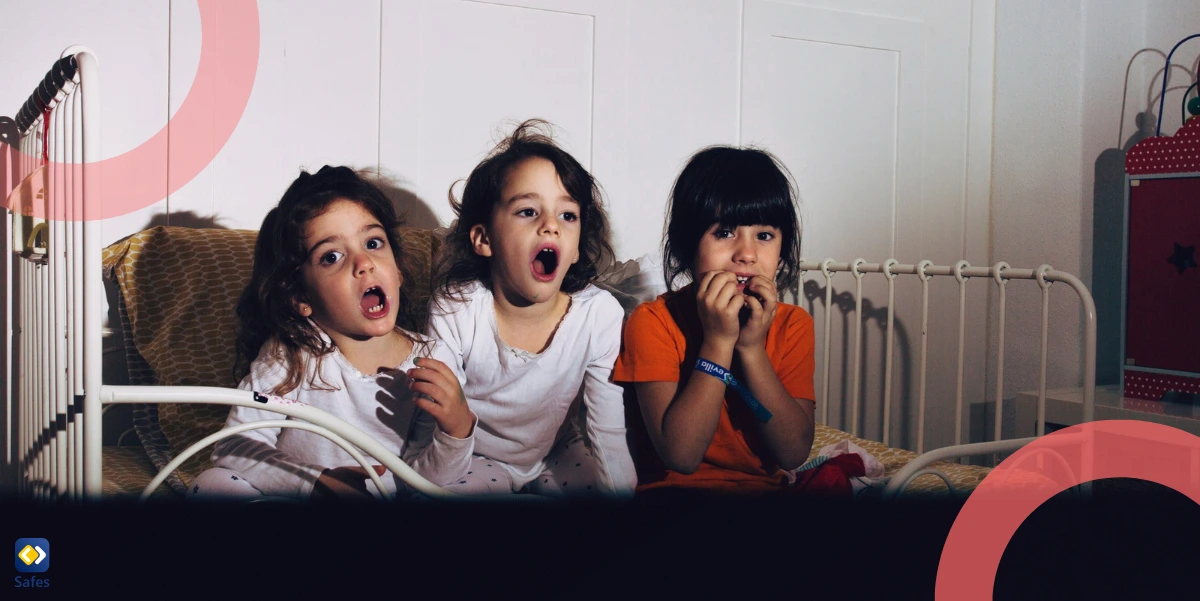
- Lack of Supervision – Kids may be exposed to inappropriate content if the TV is not properly monitored or restricted. One of the biggest concerns parents have about putting a TV in their child’s room is exposure to violent content. Studies suggest that excessive screen time and violent media can impact children’s behavior and emotional development. Learn more about the effects of TV violence on children here.
- Increased Screen Time – A personal TV may encourage excessive viewing, leading to reduced physical activity and social interaction.
For families who choose to place a TV in a child’s room, parental controls and screen time limits are crucial in maintaining a healthy balance.
Best TVs for Kids’ Rooms
When selecting a TV for your child’s bedroom, you’ll want a model that is safe, reliable, and equipped with the right features. Here are some of the best options available:
1. TCL 32-Inch 3-Series Roku TV
- Why It’s Great for Kids: This smart TV offers parental controls, a user-friendly interface, and access to child-friendly streaming apps.
- Key Features: 720p HD resolution, built-in Roku streaming, and voice control compatibility.
2. Insignia 24-Inch Smart Fire TV
- Why It’s Great for Kids: Compact and affordable, with easy access to Prime Video, Disney+, and Netflix.
- Key Features: 1080p Full HD resolution, parental control settings, and Alexa integration.
3. Samsung 32-Inch Frame TV
- Why It’s Great for Kids: Doubles as an art display, making it a stylish option for a child’s room without making the TV the focal point.
- Key Features: 1080p HD resolution, ambient mode, and customizable frame options.
Choosing a smaller screen size (between 24-32 inches) is generally recommended for kids’ rooms to avoid overpowering their space and reducing excessive screen time.
Key Features to Consider When Buying a TV for Kids
When purchasing a children’s smart TV, look for these important features:
1. Screen Size & Placement
- A TV between 24-32 inches is ideal for a child’s room.
- Ensure it’s placed at eye level to prevent strain and mounted securely to avoid tipping hazards.
2. Parental Controls & Kid-Friendly Modes
- Many smart TVs offer built-in parental controls to restrict content and manage screen time.
- Some TVs feature “Kids Mode,” allowing access only to age-appropriate content.
3. Connectivity & Smart Features
- Opt for smart TVs that support streaming apps like Netflix Kids and YouTube Kids.
- Consider models with HDMI and USB ports to connect gaming consoles and educational devices.
4. Display Quality & Eye Comfort
- Look for TVs with blue light reduction to minimize eye strain.
- Ensure the TV supports 720p or 1080p resolution for a clear picture without overwhelming a small space.
How to Set Up Parental Controls on a TV
Once you’ve selected a TV for a playroom or a child’s bedroom, it’s essential to configure its settings to ensure safe and appropriate content for your child. Setting up parental controls is an essential step to ensure that children watch only age-appropriate content. From smart TVs to streaming services, various options allow parents to filter and restrict media consumption. Read our full guide on how to enable parental controls on TVs here. Here’s how:
1. Smart TVs (Roku, Fire TV, Samsung, LG, etc.)
- Go to Settings > Parental Controls and create a PIN.
- Set restrictions for TV ratings, movies, and app access.
- Enable time limits to restrict screen time.
2. Streaming Services (Netflix, Disney+, YouTube Kids)
- Netflix: Create a Kids Profile to filter age-appropriate content.
- Disney+: Enable Kids Mode to restrict PG-rated content.
- YouTube Kids: Set watch limits and disable search features.
3. Gaming Consoles (Xbox, PlayStation, Nintendo Switch)
- Use Family Settings to control screen time and restrict mature content.
- Disable online multiplayer chats to prevent exposure to strangers.
Setting up parental controls is an essential step to ensure that children watch only age-appropriate content. From smart TVs to streaming services, various options allow parents to filter and restrict media consumption. Read our full guide on how to enable parental controls on TVs here.
Conclusion
A TV in a child’s room can be a useful tool for entertainment and education, but it must be managed responsibly. By choosing the right TV model, enabling parental controls, and setting screen time limits, parents can ensure a safe and balanced viewing experience. Whether you opt for a smart TV with built-in restrictions or a basic model with external streaming devices, the key is maintaining open communication and encouraging responsible digital habits.
If you’re looking for more control over your child’s screen time, consider using a parental control app like Safes Family to monitor and limit their TV and device usage effectively. Want to ensure safe and healthy screen time for your child? Safes Family offers advanced parental control features to help you monitor and manage their device usage. Try Safes Family’s free trial on iOS & Android!
Your Child’s Online Safety Starts Here
Every parent today needs a solution to manage screen time and keep their child safe online.
Without the right tools, digital risks and excessive screen time can impact children's well-being. Safes helps parents set healthy boundaries, monitor activity, and protect kids from online dangers—all with an easy-to-use app.
Take control of your child’s digital world. Learn more about Safes or download the app to start your free trial today!